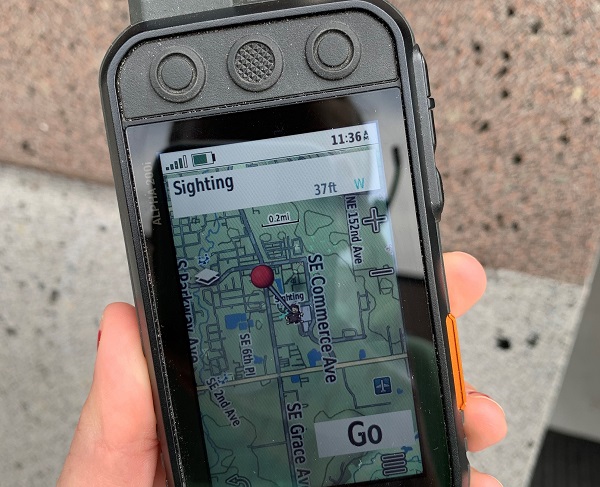
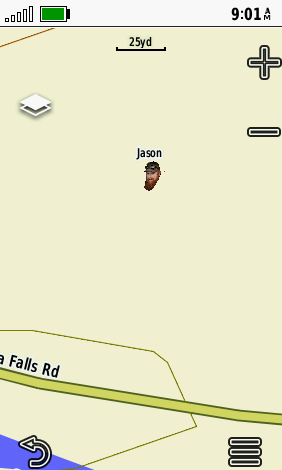
Apart from adding custom-made waypoint symbols to your Alpha unit, you can also create your own. This is useful if you wish to mark a specific location with an easily recognizable symbol.

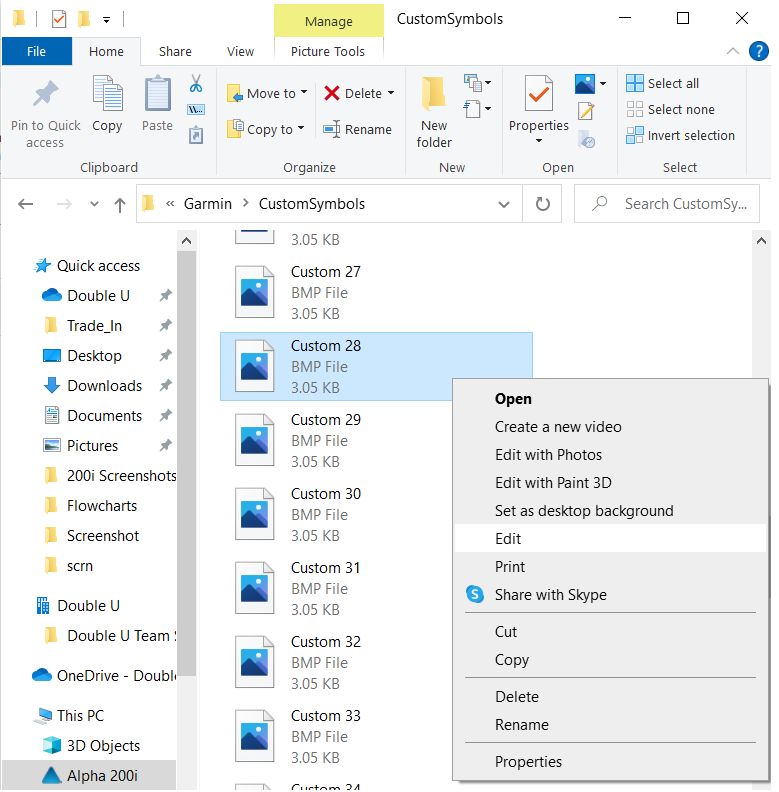
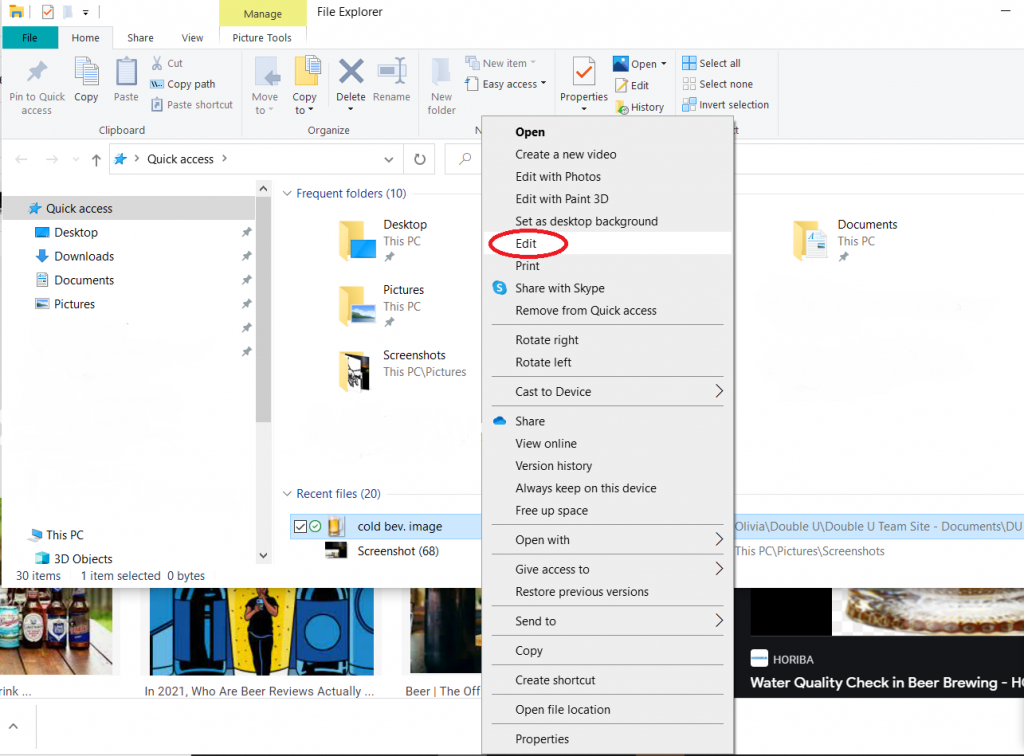
After downloading some custom waypoints for your device, you can get to making your own. The easiest way to do this is by saving the small purple template below, however you may also do this by editing an existing file, and saving it under a different name to preserve it. From your PC, select any of the custom waypoint icons or your template file and open it in Microsoft Paint (In Windows 10, you can do this by right-clicking an icon and selecting "Edit").

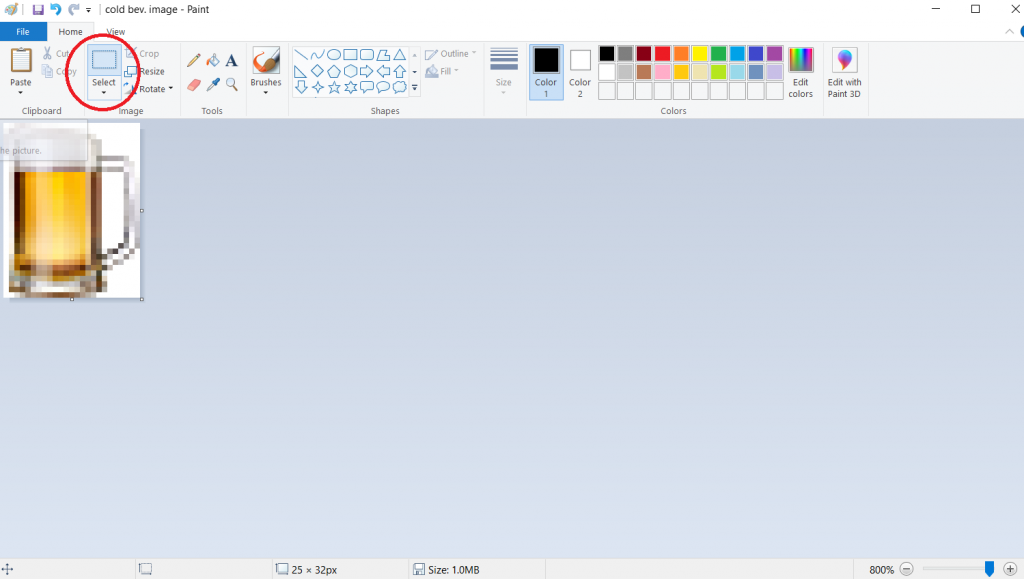
Waypoint icons are very small, only 32x32 pixels. You'll likely need to adjust your Zoom to the highest level, 800% using the slider to the bottom-right hand corner, or use the magnifying glass tool to properly see what you're doing and design or edit an image.

Make this tiny square your own by right-clicking, and selecting "Save As". Then add your own art in Paint to create a custom waypoint symbol!
Any picture can be made into an icon with minimal effort. Simply search any image you like and save the file, keep in mind some photos are easier to turn into a waypoint than others.
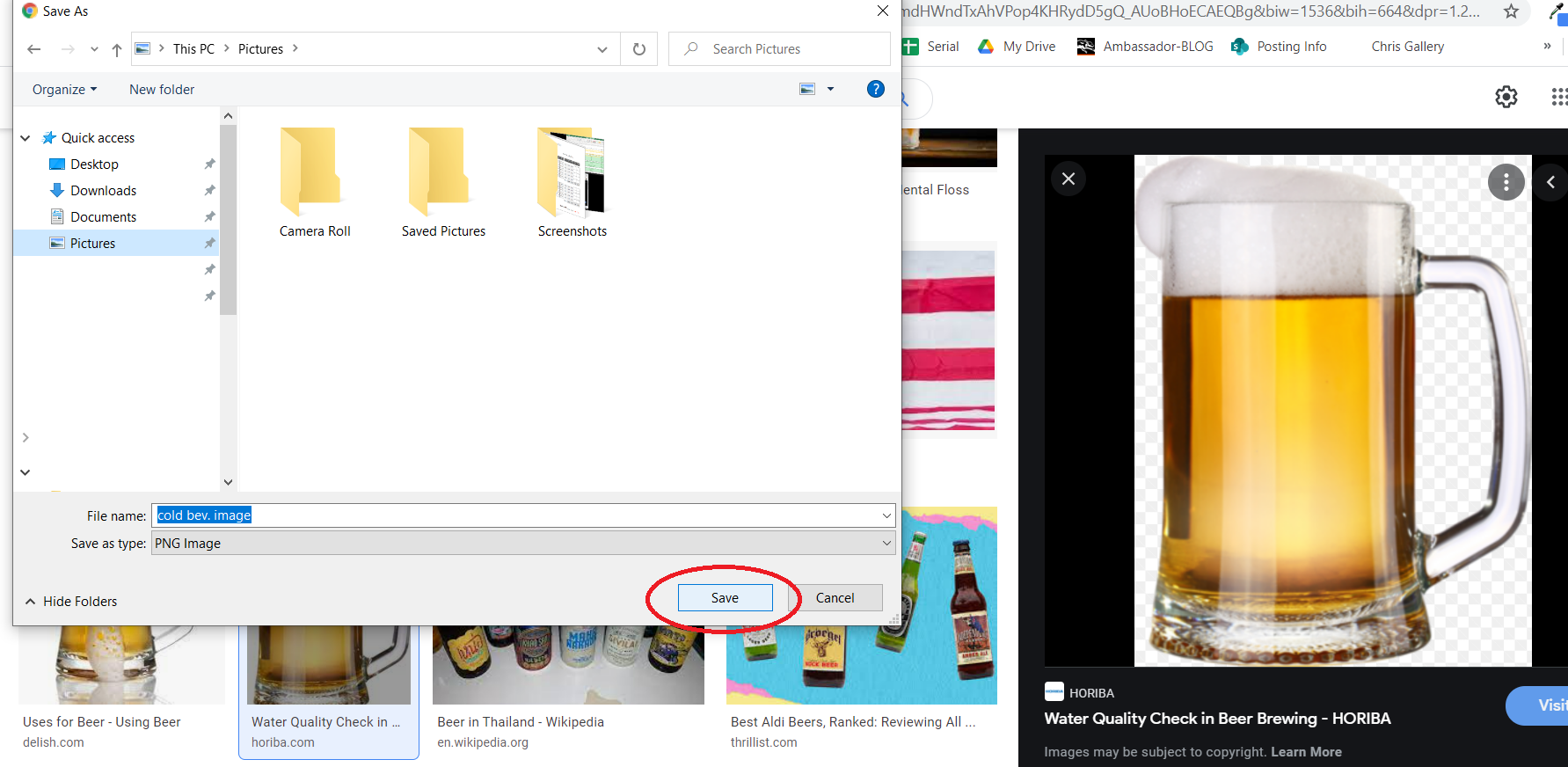
Once saved - open your files, right click your photo, and select edit.
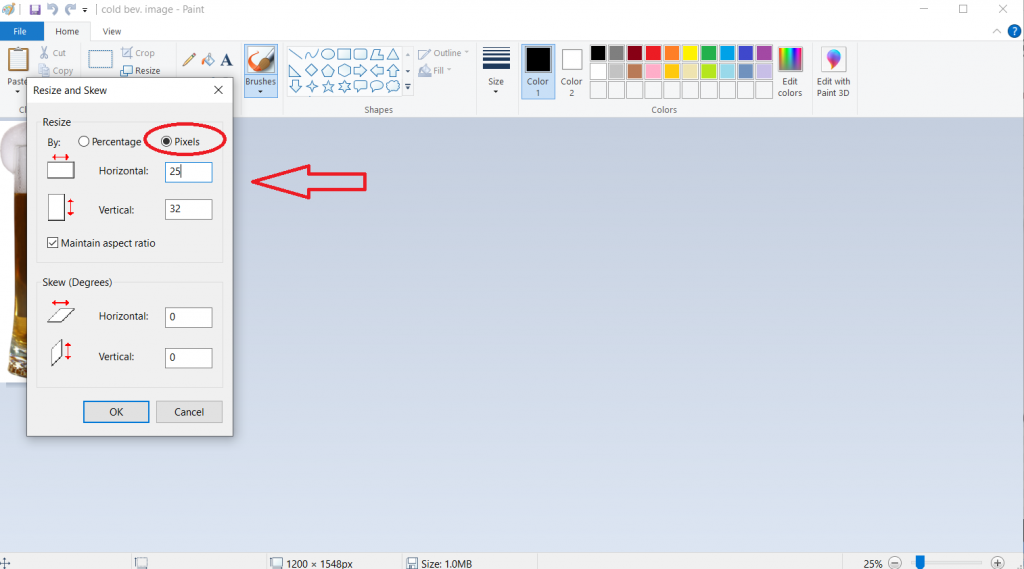
Next, you're going to resize your image to be less than 32 by 32 pixels. In this case, I had to make this image a little smaller so it would fit.
Your image is going to be quite small so we recommend dragging the zoom bar at the bottom right hand corner up to 800% to view the image more clearly. After that, click on rectangle above the select tool to allow you to select your image. Then, click and drag to capture the entire image - right click the image and select copy.
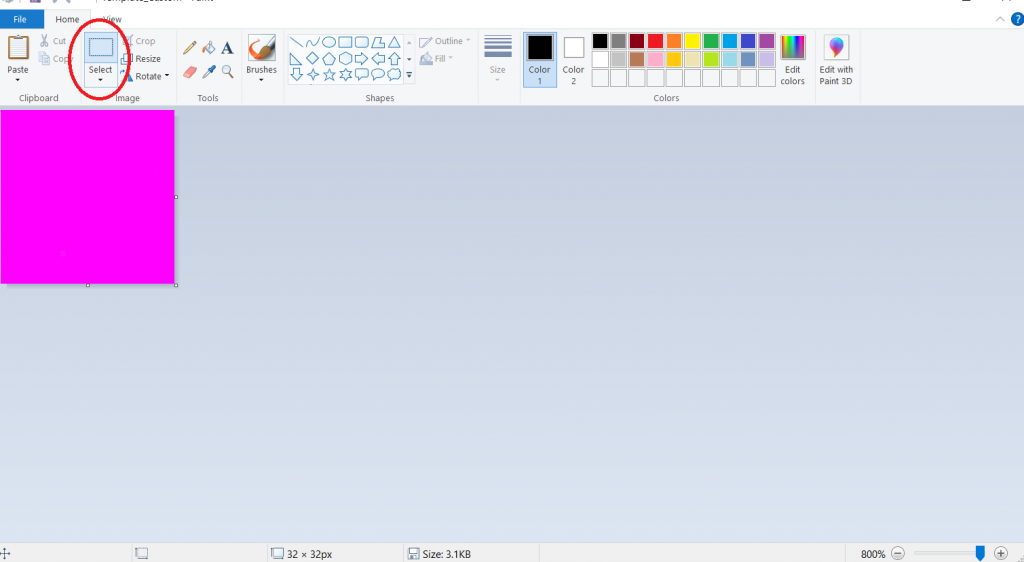
After you have copied the image, open your files and right click the file with the little purple square you saved earlier and select edit. Once it has opened, click on the select option.
Now, right click over the purple square and hit paste. Your image that you have been working with previously should now be on top of the purple square. You can click and drag the image to center it as well
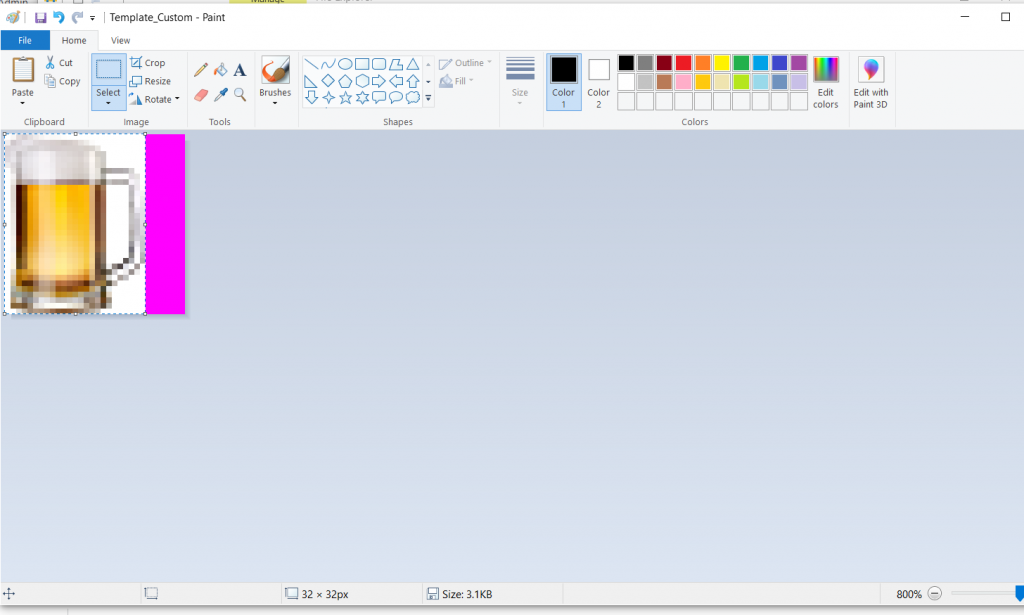
The next step is to click on the Color Select tool and click the purple part of the image to grab that color.
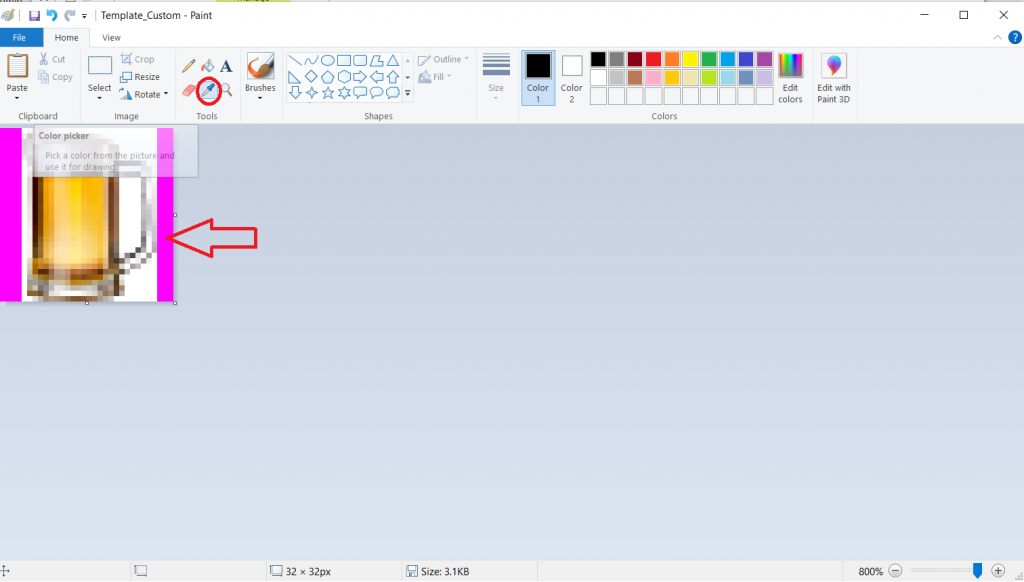
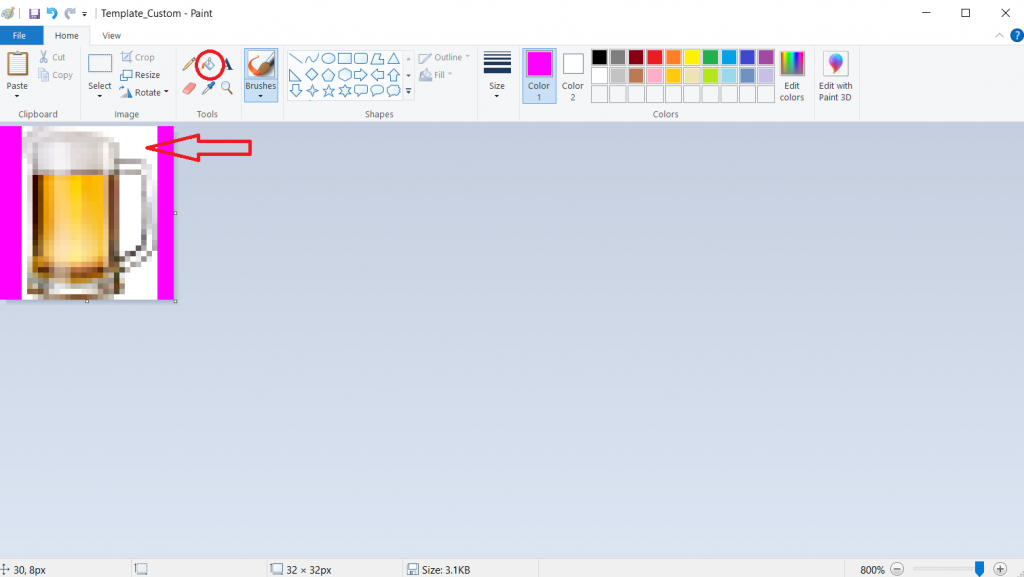
After the color has been selected and it matches the purple background, you can select the paint bucket icon and begin clicking on the white parts of the image to get rid of them.
Your image should begin to look like this
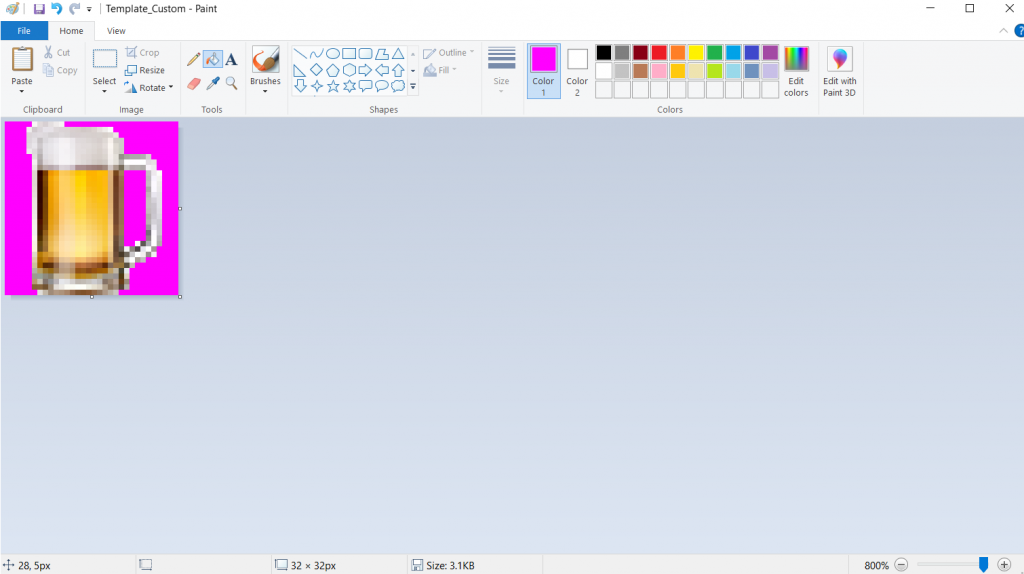
If there are still some little white spots you wish to get rid of, click on the pencil tool and manually fill in any of the white spots.
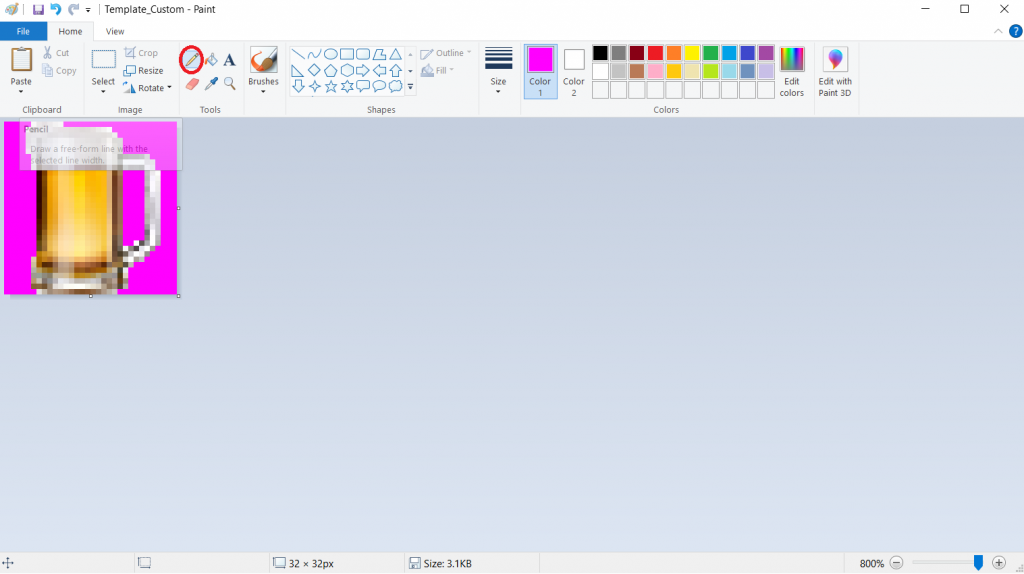
Once you are satisfied with your icon, go ahead and click File > Save As
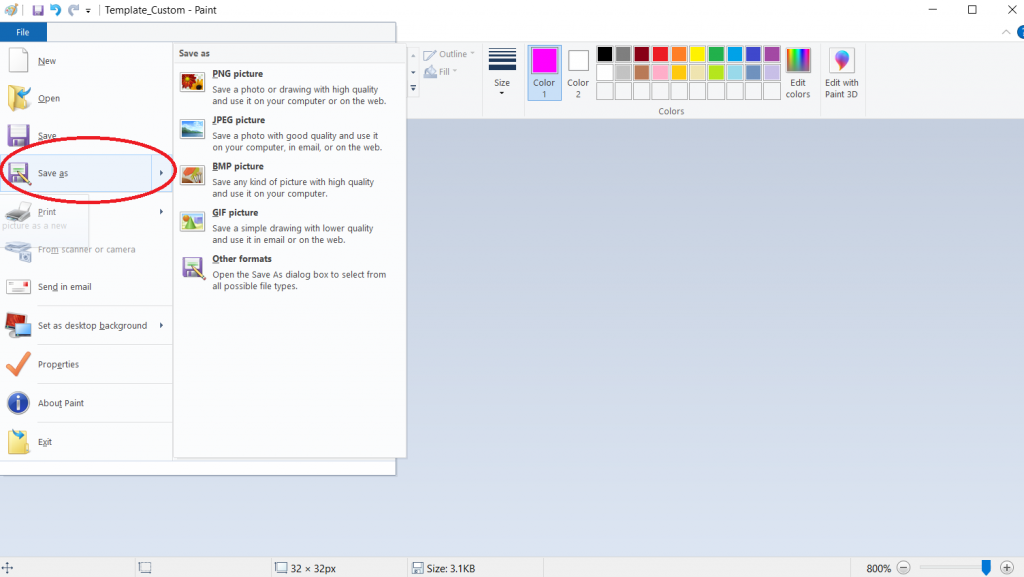
Save the file to your Alpha 200i's Internal Storage > Garmin > CustomSymbols
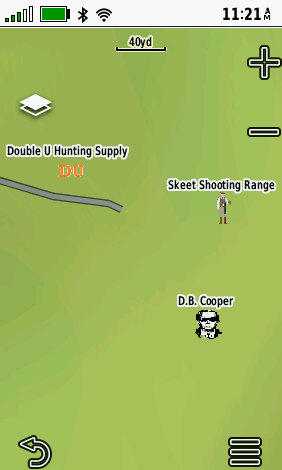
If you've saved them to the correct folder, you should find your homemade waypoints under the "Custom" tab when choosing a waypoint icon.
Here's an example of some of the waypoints we've created here at Double U. Feel free to download and use right away or begin creating your own! Instructions on getting these waypoints downloaded can be found on the article, "Adding Custom Waypoint Symbols to your Garmin Alpha Unit"